

Key Takeaways
Why a Password Alone Is No Longer Enough
Passwords are breached constantly. Data from public breach disclosures shows billions of username-password combinations are available in criminal marketplaces. When someone reuses a password across accounts - a very common habit - a single breach can cascade into multiple compromised accounts. Two-factor authentication (2FA) addresses this directly: even if an attacker has your correct password, they cannot log in without also passing a second verification step that only you control.
The principle is sometimes called something you know (your password) plus something you have (your phone or a hardware key). Requiring both factors simultaneously makes automated, large-scale attacks far less effective. Security research consistently indicates that enabling 2FA substantially reduces the risk of successful account takeover compared to passwords alone.
If you travel frequently and connect to unfamiliar networks, 2FA is especially relevant. See our guide to digital safety while traveling for related precautions around public Wi-Fi and device security abroad.
Prioritize Your Most Critical Accounts First
If enabling 2FA on every account feels overwhelming, start with the accounts that matter most: your primary email, your bank or financial apps, and any account tied to payment information. Your email address in particular is a master key - anyone who controls it can typically reset passwords for everything else linked to it.
Understanding the Different Forms of 2FA
Not all second factors offer equal protection. Here is a plain-language breakdown of the most common types:
- SMS text message codes: A code is sent to your registered phone number. Simple and widely supported, but vulnerable to SIM-swapping attacks where a bad actor convinces a carrier to redirect your number.
- Authenticator apps: An app on your smartphone generates a time-based code every 30 seconds. Because the code is generated locally on your device - not transmitted over a phone network - it is harder to intercept.
- Hardware security keys: A small physical device (typically USB or NFC) that you plug in or tap to authenticate. Considered the strongest consumer-grade option and effectively eliminates phishing-based attacks on 2FA.
- Push notifications: Some platforms send an approval prompt to a companion app. You tap to approve or deny the login attempt in real time.
For most people, an authenticator app offers the right balance of strong security and everyday convenience. Hardware keys are worth considering for accounts with significant financial or professional exposure.
SMS Codes Are Convenient but Not Foolproof
Text-message-based 2FA is far better than no 2FA at all, but it carries a known vulnerability: SIM-swapping attacks, where a bad actor convinces your carrier to transfer your number to their device. For accounts containing sensitive financial or personal data, consider upgrading to an authenticator app or hardware key. If SMS is your only available option, still use it - it raises the bar meaningfully.
Authenticator App (e.g., Google Authenticator, Authy, or similar)
Generates time-based one-time codes on your device without needing a cellular signal.
Mobile Phone with SMS capability
Used to receive text-message verification codes if you choose the SMS 2FA method.
Hardware Security Key (e.g., a FIDO2-compatible USB key)
Provides the strongest form of 2FA; plugged in or tapped to verify your identity physically.
Secure password manager
Stores backup codes safely so you can access accounts if your 2FA device is unavailable.
What you will need
How to Turn On 2FA: Step-by-Step
The process below applies broadly across most major platforms - email providers, social media networks, financial institutions, and subscription services. Small differences in menu labels exist, but the underlying steps are consistent.
Save Your Backup Codes Before You Finish
Every platform that supports 2FA also provides one-time backup codes during setup. These are your safety net if you lose access to your phone or authenticator app. Store them somewhere secure - a printed copy in a safe place or inside a reputable password manager - before you complete setup. Skipping this step can leave you permanently locked out of your own account.
Choose which accounts to secure first
Make a short list of your highest-priority accounts. Email, banking, investment, and social media accounts are typically the most valuable targets for attackers. You do not need to enable 2FA everywhere simultaneously - starting with two or three critical accounts is a practical approach.
Install an authenticator app on your phone
Open your device's app store and search for an authenticator app. Several reputable options are available at no cost. Once installed, you don't need to create an account in most cases - the app simply generates codes. Keep the app on a device you regularly have with you.
Navigate to security settings in your account
Log in to the account you want to protect. Look for a Security, Privacy, or Account Settings menu. Within it, find the section labeled Two-Factor Authentication, Two-Step Verification, or Login Security. The exact label varies by platform, but the option is usually near the password settings.
Select your preferred 2FA method
Most platforms offer at least two options: an authenticator app or SMS text message. Select Authenticator App when available - it is more resistant to interception than SMS. If the platform only supports SMS, that is still a meaningful improvement over a password alone.
Scan the QR code with your authenticator app
Open your authenticator app and select the option to add a new account (often a + button). Choose Scan QR code and point your phone's camera at the code displayed on screen. The app will immediately begin generating six-digit codes that refresh every 30 seconds. If you cannot scan the QR code, most platforms also display a text-based setup key you can enter manually.
Enter the generated code to confirm setup
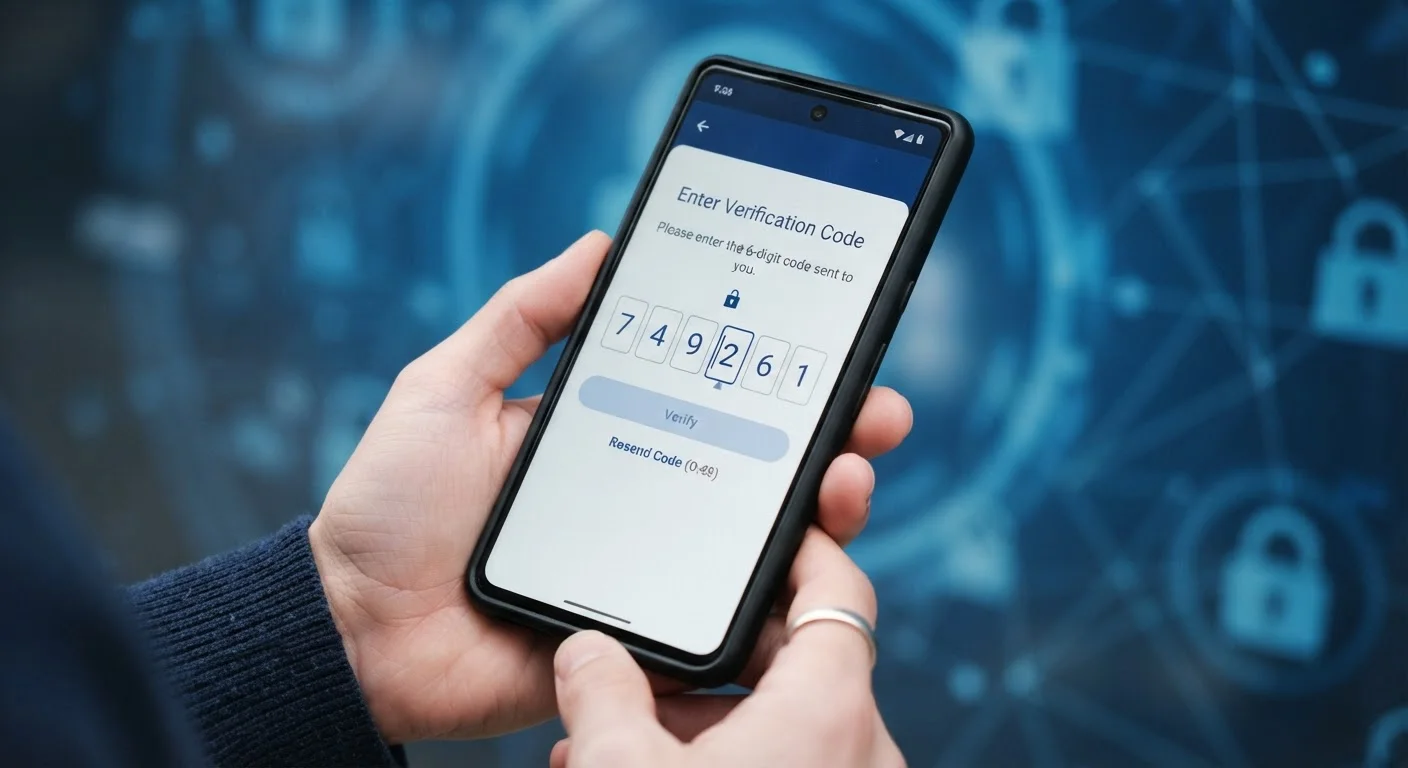
The platform will ask you to enter the current code shown in your authenticator app to verify that everything is connected correctly. Type the six-digit code before it expires. A successful entry confirms the link between your account and your app.
Save your backup codes securely
After confirming setup, the platform will display a set of one-time backup codes - typically eight to ten alphanumeric strings. Download or write these down and store them somewhere secure, separate from your phone. A password manager or a physical printout stored in a safe location both work. These codes allow account recovery if you lose access to your authenticator app.
Once you have enabled 2FA on your priority accounts, repeat the process for additional accounts at your own pace. The setup investment is small relative to the protection gained.